Samsung Print Service Plugin
HP Inc.Productivity
3.79.10K Reviews
- Version
- 3.12.260420
- Installs
- 1.00B
- Age Rating
- Everyone
Screenshots
Our Review of Samsung Print Service Plugin
 Analysis by Appyee
I think the best way to judge a phone-printing app is to start with the printer you already own, not with a list of features. The key question is whether your printer appears when you try to print from an Android app and whether the options you need are available. Samsung Print Service Plugin is worth considering when you want to send a document or image to a nearby printer without first moving it to a computer. It is a free productivity app from HP Inc., despite Samsung in its name, and its basic appeal is practical: printing can be available from the apps where your files already live.
Start with your printer and your usual workflow
Before relying on it for an important job, try a low-stakes print from the phone you plan to use. Open a photo or a document, choose the system print option, and see whether the printer is discoverable and the settings make sense. Printer compatibility is the first decision point; a broad range of supported printers is useful, but it does not mean every model or network setup behaves identically. A quick test tells you more than installing an app and assuming the printer will appear automatically.
It helps to think about what you print most. A person who occasionally needs a boarding document, a school handout, or a return label has different needs from someone who prints batches of office paperwork every day. For occasional jobs, direct access from the phone can spare a detour through a laptop. For frequent, tightly controlled work, the quality of the printer’s own options and the consistency of the network connection matter just as much as the plugin.
Getting Started with Samsung Print Service Plugin
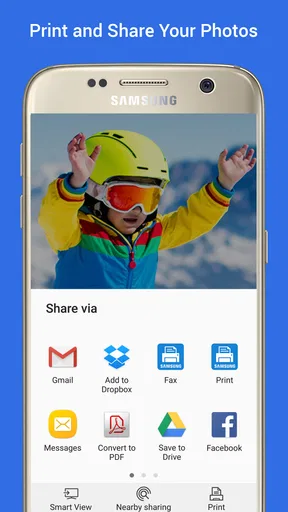
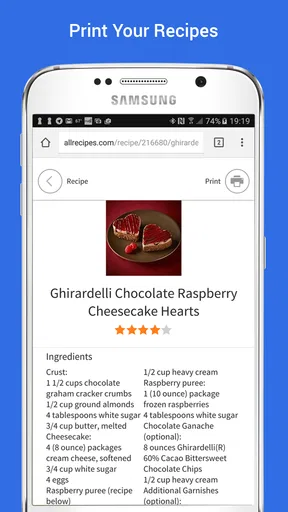
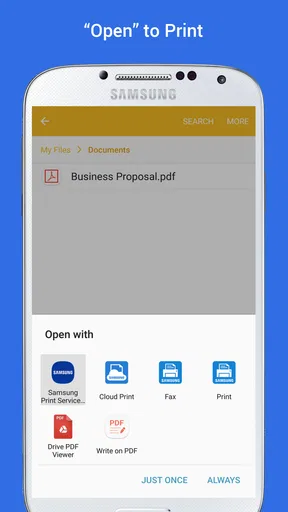
First things first, the Samsung Print Service Plugin is a nifty little app that allows you to print from your Android device without breaking a sweat. Setting it up is as easy as pie. Once you’ve installed the app, it integrates seamlessly with the system, meaning you can start printing directly from your gallery, browser, or even your emails.
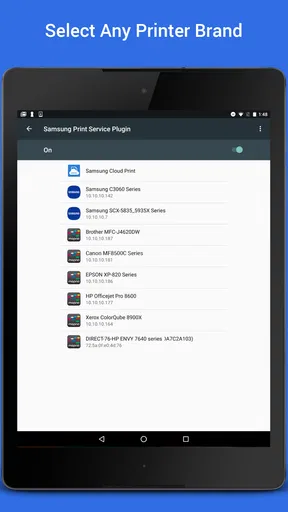
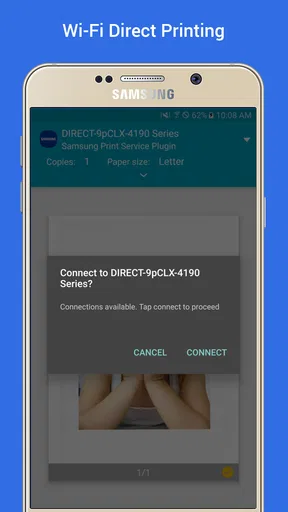
The best part? You don’t need to be a tech wizard to get it up and running. Just make sure your phone and printer are connected to the same Wi-Fi network, and you’re good to go. It supports a wide range of printers, so chances are, your printer is ready to roll with this plugin.
Features That Make Printing a Breeze
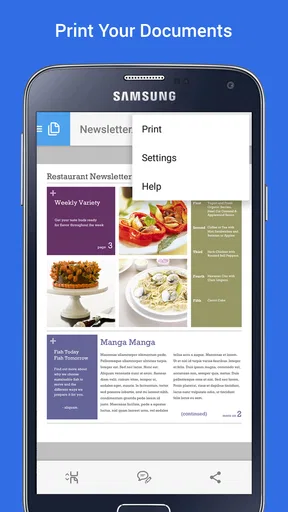
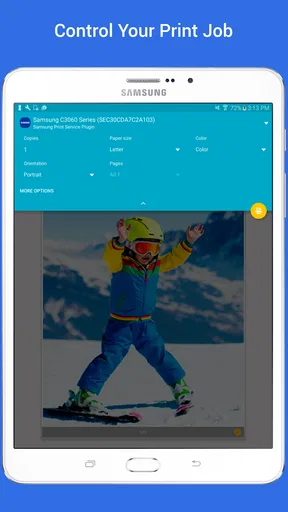
This app isn't just about basic printing; it’s packed with features that make it stand out. You can easily adjust settings like paper size, color mode, and number of copies right from your phone. The app supports a variety of file formats, so whether it's a PDF, a photo, or a document, you’re covered.
What I found particularly handy is the ability to preview documents before hitting print. No more accidental prints of half-finished documents or embarrassing typos! Plus, the app supports duplex printing if your printer has that feature, which is a lifesaver for saving paper.
Small checks that can prevent wasted prints
My practical tip is to treat the preview as a real checkpoint, not a decorative step. Check whether a long document has the right page range, whether a photo is framed as you expect, and whether a document is set to color when black and white would do. These small choices are especially useful when you are printing from a phone screen, where it is easy to overlook a page break or select more copies than intended.
For a multi-page handout, I would first confirm the paper size and copy count, then use duplex printing only if the printer supports it and the layout remains readable on both sides. Double-sided output can save sheets, but it is not always the right choice for forms that need separate pages or documents someone will annotate. The plugin makes common print controls convenient; it does not remove the need to think about how the finished pages will be used.
A realistic use case is a parent who receives a school notice by email while away from a desk. They can open the message or its attached file, inspect the pages, and send the useful copy to a home printer rather than forwarding it to another device. The same workflow can suit a traveler printing a saved itinerary or someone preparing a few pages for a meeting. I would still check the result before leaving home if the document is time-sensitive, because convenience is only helpful when the printer is ready and the output is correct.
The User Experience
Using the app feels intuitive. The interface is clean and straightforward, designed to not overwhelm you with unnecessary bells and whistles. The menu options are clear, and everything is labeled just like you’d expect. The app runs smoothly without any noticeable lag, which is crucial when you’re in a hurry.
One thing that really stood out to me was the convenience of having everything in one place. Whether I’m printing school assignments, work documents, or just some fun photos, the app handles it all without missing a beat. It’s one of those apps you didn’t know you needed until you try it.
How it compares with other ways to print
Compared with sending a file to a computer and printing from there, printing from Android is a shorter route when the document is already on your phone. That is the plugin’s clearest advantage: it fits into an existing mobile workflow rather than making you move files around. On the other hand, a computer can be more comfortable for careful page layout, editing, or handling a large job where you want to review the document on a bigger screen before committing to paper.
Printer-brand apps are another reasonable option, particularly when you want tools made for one specific printer family. They may be a better fit if your regular tasks depend on a manufacturer’s own controls. A general Android printing service is more appealing when you value access from different apps and do not want to make every print depend on a separate workflow. I would choose based on the printer and the controls I actually use, rather than assuming one approach is best for everyone.
There is also a useful distinction between printing and document management. This plugin helps get a file onto paper; it is not a substitute for editing a PDF, organizing files, or checking a document’s contents. If you routinely need to alter margins or make detailed layout changes, edit the file first in an appropriate app and then print the finished version. That division of labor is less frustrating than expecting the print service itself to fix a document that is not ready.
Where another choice may make more sense
If you primarily use an iPhone or iPad, an Android print service is not the natural starting point; use the printing options available in your Apple workflow or the printer maker’s iOS app instead. Likewise, if your printer is not found on the network, repeated attempts from the phone may not solve a printer or Wi-Fi configuration problem. Check that both devices are on the intended network and that the printer is awake before concluding the plugin is at fault.
People who rarely print may not need to install a dedicated service at all if their Android device and printer already offer a suitable built-in route. At the other end, office users who depend on managed queues, strict document handling, or specialized finishing should check that their established workplace process supports this way of printing before making it their default. The convenience is real, but it is not a reason to replace a setup that already meets specific business requirements.
Switching without disrupting your routine
Trying the plugin does not have to mean abandoning another method. I would keep the existing printer workflow available until a few ordinary jobs have gone through successfully: a short document, a photo, and a longer file are enough to reveal different snags. This also helps separate a printer-connection issue from a file-specific problem. If a single attachment behaves oddly, test another file before deciding that mobile printing as a whole is unreliable.
When moving from a printer maker’s app, compare the controls you use most often rather than judging by the first successful page. Check whether paper size, color choice, copies, and duplex options are easy to reach for your normal documents. If those controls are present and the printer remains easy to find, the system-level route may reduce steps. If a manufacturer’s app gives you a control you rely on, keeping both approaches available can be the more sensible choice.
Is It Worth It?
In my opinion, if you own a Samsung device and a compatible printer, the Samsung Print Service Plugin is a must-have. It’s a free app, so you won’t be breaking the bank to make your printing life a whole lot easier. The convenience it offers is unmatched, especially if you’re someone who’s constantly on the go.
However, if you’re not using Samsung devices, you might want to check if your phone is compatible. Though it primarily targets Samsung users, the plugin can work on other Android devices, but the experience might not be as smooth.
What to expect before making it your default
The app has been available since November 5, 2013, and its current version is 3.12.260420. It has a 3.7 average from around 468,000 ratings, alongside roughly 9,100 written reviews, and more than a billion installs. Those figures suggest that mobile printing is a familiar use case for many people, but they cannot tell you whether your own printer and home network will cooperate. I would use them as context, not as a promise of a flawless setup.
It is rated for Everyone, so its intended audience is broad. That does not mean every person needs it: the strongest case is for Android users who print often enough to value a direct route from a gallery, browser, or email, and whose printer works well with the service. If you print only once in a while, try the built-in option first. If you print often, save yourself frustration by testing the settings you rely on before a deadline, rather than discovering a paper-size or connectivity issue when you are rushing.
The Final Verdict
All in all, the Samsung Print Service Plugin is a stellar app that simplifies the printing process. It’s intuitive, reliable, and packed with features that cater to both casual users and those who print frequently. Whether you’re printing a quick document or a detailed photo, this app has you covered.
If you’re tired of the cumbersome printing process from your phone, give this app a shot. It might just change the way you look at mobile printing. Happy printing!
My recommendation is to install it when your everyday printing starts on Android and you want fewer file transfers, then judge it by a handful of real jobs on your own printer. Keep a computer or printer-brand app in reserve if you need more specialized controls, and do not make a last-minute print your first test. For the right setup, this is a practical shortcut; for someone who seldom prints or needs advanced document preparation, it is an optional convenience rather than an essential tool.
Verdict
Strengths of Samsung Print Service Plugin
- Seamless integration with Samsung devices.
- Supports a wide range of file formats.
- Easy to use interface for quick printing.
- Automatic discovery of compatible printers.
- Regular updates enhance functionality.
Limitations of Samsung Print Service Plugin
- Limited features on non-Samsung devices.
- Occasional connectivity issues reported.
- Requires Wi-Fi for most functions.
- Cannot edit documents within the app.
- Large app size may affect storage.
Other Releases by HP Inc.
View All
HP Print Service Plugin
Productivity4.1

HP
Productivity4.2
Similar Picks in This Category
View All
Google Calendar
Google LLC4.6

Google Drive
Google LLC4.3

Google Assistant
Google LLC3.9

Microsoft OneDrive
Microsoft Corporation4.6

Samsung Calendar
Samsung Electronics Co., Ltd.4.1

Microsoft OneNote: Save Notes
Microsoft Corporation4.6
Frequently Asked Questions
What is the Samsung Print Service Plugin used for?
The Samsung Print Service Plugin is an app that allows users to print directly from their Android devices to various printers without the need for additional drivers or software. It supports a wide range of printers, making it convenient for users to print documents, photos, and more directly from their mobile devices.
Is the Samsung Print Service Plugin compatible with all printers?
The plugin is compatible with most Samsung printers and many other brands that support the Mopria Print standard. However, users should verify compatibility with their specific printer model. Checking the printer's specifications or the Samsung support page can provide further details about compatibility.
Do I need an internet connection to use the Samsung Print Service Plugin?
While an internet connection is not required for the plugin itself, your device needs to be connected to the same local network as the printer, typically via Wi-Fi. This network connection allows the app to communicate with the printer directly for sending print jobs.
How do I set up the Samsung Print Service Plugin on my device?
Setting up the plugin is straightforward. First, download and install the app from the Google Play Store. Once installed, go to your device’s settings, select 'Printing', and enable the Samsung Print Service Plugin. Ensure your device is connected to the same Wi-Fi network as your printer.
Are there any costs associated with using the Samsung Print Service Plugin?
The Samsung Print Service Plugin is free to download and use. However, users should be aware that printing itself may incur costs, such as paper, ink, or toner, depending on their printer model and usage. No additional fees are required for the app itself.
